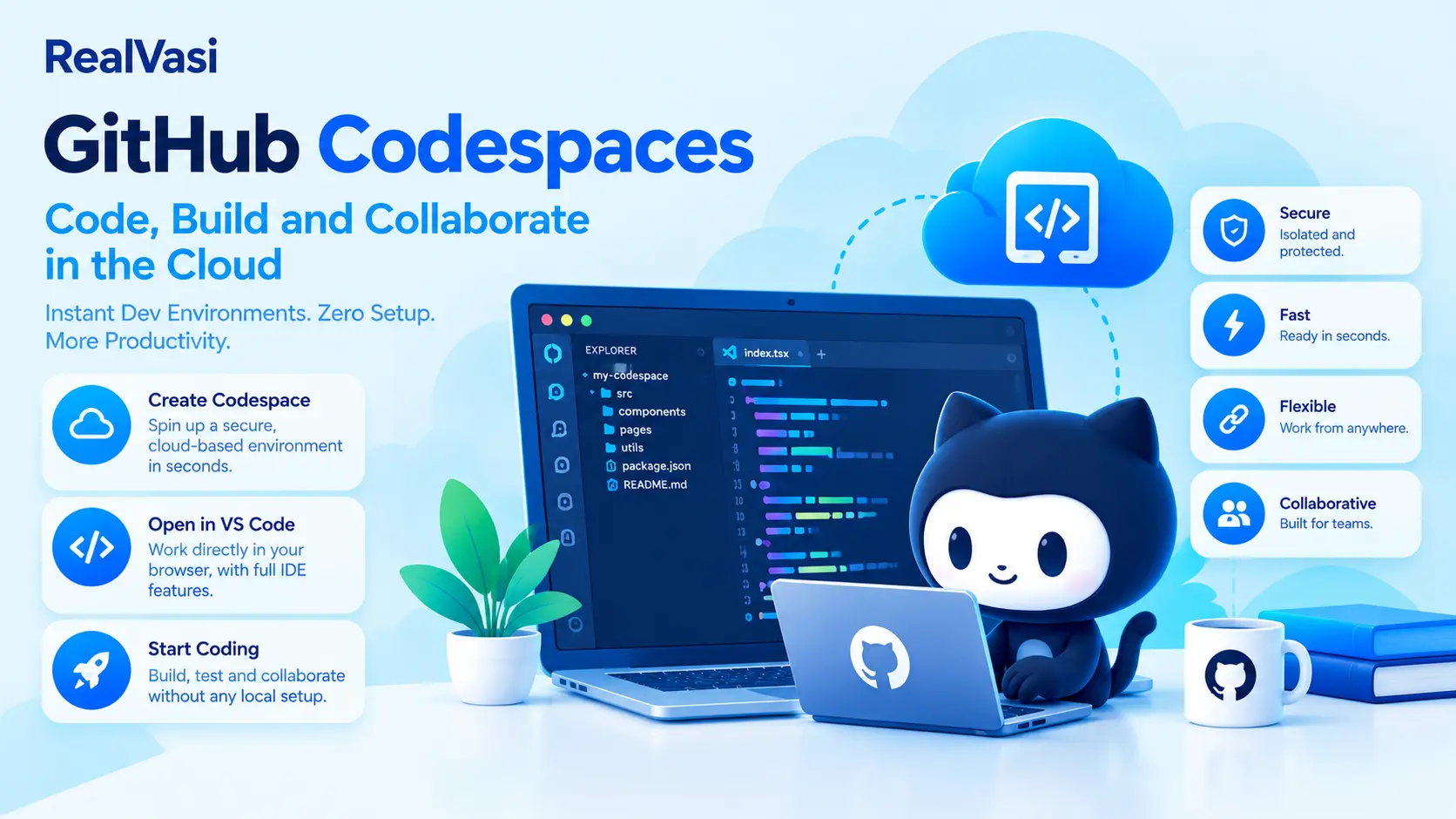
GitHub Codespaces
GitHub Codespaces provides a cloud-hosted development environment that allows developers to work on a project without having to configure the entire development environment on their local computer.
A codespace runs in a development container on a virtual machine and can be accessed through a web browser, Visual Studio Code, or GitHub CLI.
A simple way to visualize the concept is:
GitHub Repository
↓
Create Codespace
↓
Cloud Development Environment
↓
Write / Test / Debug
↓
Commit Changes
↓
Push to Repository
This approach can be particularly useful when teams need consistent development environments, when onboarding new developers, or when local computers do not have sufficient resources for a particular project.
Why GitHub Codespaces Matters
Setting up a development environment can sometimes take significant effort.
A new developer joining a project may need to install:
- A programming language runtime
- Package managers
- Development tools
- Database utilities
- Editor extensions
- Project dependencies
- Supporting command-line tools
They may also need to configure environment variables and resolve differences between their machine and the environment used by the rest of the team.
GitHub Codespaces allows much of the development environment to be defined as part of the project configuration.
Instead of every developer manually reproducing the environment, the project can describe the tools and configuration required for development.
This changes the traditional model from:
Clone Repository
↓
Install Tools
↓
Configure Environment
↓
Install Dependencies
↓
Resolve Issues
↓
Start Development
toward:
Open Repository
↓
Create Codespace
↓
Prepared Development Environment
↓
Start Development
The actual setup still depends on how the project is configured, but the objective is to reduce unnecessary manual environment configuration.
How GitHub Codespaces Works
A codespace can be created from a repository, branch, commit, or template.
When the environment is created, the required computing resources are provisioned and the development environment is prepared.
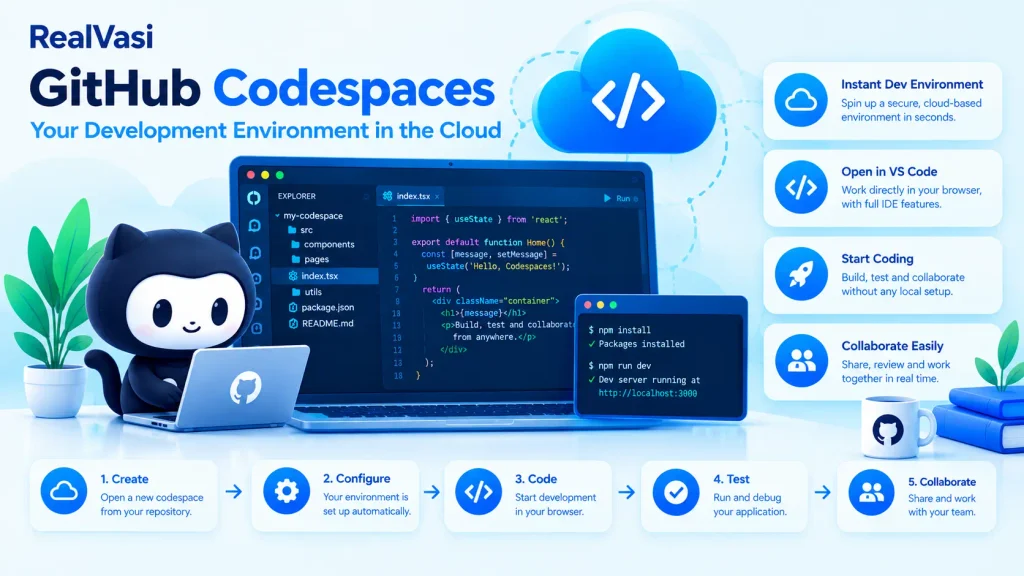
A simplified workflow is:
Select Repository
↓
Create Codespace
↓
Prepare Development Environment
↓
Connect to Environment
↓
Develop
↓
Commit and Push Changes
Once the environment is ready, developers can perform familiar development tasks such as:
- Editing files
- Running commands
- Working with Git
- Running tests
- Debugging applications
- Installing or using project-specific tools
The main difference is that the development environment is running remotely rather than entirely on the developer’s local machine.
Cloud-Based Development
One of the main characteristics of Codespaces is that the development environment runs on remote infrastructure.
Instead of requiring every developer to install the same tools, runtimes, libraries, extensions, and project dependencies locally, a project can define much of its required environment through configuration.
This can provide two important benefits:
Consistency
Different developers can work with similar development environments.
Reduced setup effort
New developers can spend less time manually configuring their machines.
GitHub also provides different virtual machine configurations so that teams can select resources appropriate for their development workloads.
Development Containers
Codespaces uses development containers, commonly referred to as dev containers, to provide the project’s development environment.
A repository can contain configuration under a `.devcontainer` directory.
A commonly used configuration file is:
.devcontainer/devcontainer.json
This configuration can describe development tools, runtimes, extensions, features, and other settings required by the project.
A project might define an environment containing:
- Node.js
- Python
- Java
- Git
- Database Tools
- VS Code Extensions
- Project Utilities
A Dockerfile can also be used when a project requires a more customized development container.
The important concept for this pillar article is not the syntax of the configuration file.
It is the idea that:
The development environment itself can become part of the project’s configuration.
Consistent Development Environments
Consider a team where the application requires:
- A particular runtime version
- Specific development tools
- Several editor extensions
- Project-specific utilities
- Certain dependencies
Without a standardized environment, developers may end up with slightly different setups.
For example:
Developer A
Node.js version X
Tool version A
Extension set A
Developer B
Node.js version Y
Tool version B
Extension set B
These differences can sometimes create environment-specific problems.
A configured development container can help the team define a common environment:
Project Configuration
↓
Development Container
↓
Consistent Development Environment
↓
Multiple Developers This can reduce environment-related inconsistencies and simplify onboarding.
Working from a Browser or Visual Studio Code
Codespaces provides flexibility in how developers access the environment.
Developers can work through:
- A browser-based development environment
- Visual Studio Code
- GitHub CLI
This means a developer does not necessarily need to install the complete project development environment on their local computer before starting work.
Developers who prefer a traditional desktop editor experience can connect their codespace to Visual Studio Code.
Others may prefer the browser-based environment.
The underlying development environment remains connected to the repository.
Codespaces and Git
Codespaces works closely with GitHub repositories and Git.
Developers can:
- Create branches
- Modify files
- Run tests
- Create commits
- Push changes
- Open pull requests
from within the codespace.
A typical workflow can therefore look like:
Open Repository
↓
Create Codespace
↓
Create Branch
↓
Modify Code
↓
Run Tests
↓
Commit Changes
↓
Push Branch
↓
Open Pull Request
This is important because Codespaces does not replace the Git workflow.
It provides a development environment in which that Git workflow can take place.
Codespaces and Pull Requests
The development workflow covered in the previous sections can continue naturally inside a codespace.
For example:
Repository
↓
Codespace
↓
Feature Branch
↓
Code Changes
↓
Commits
↓
Push
↓
Pull Request
↓
Review
This creates a close relationship between:
Development Environment → Git → GitHub → Collaboration
The developer does not need to move the project into a completely separate system simply because the development environment is hosted remotely.
Real-World Example: Onboarding a New Developer
Consider a development team building a React and Node.js web application.
A new developer joins the team.
With a traditionally configured local environment, the developer may need to:
1. Install the required runtime.
2. Install package managers and development tools.
3. Configure environment settings.
4. Install editor extensions.
5. Clone the repository.
6. Install project dependencies.
7. Resolve configuration differences.
8. Start the application.
If the project is configured for Codespaces, much of the development environment can be defined in the repository’s development-container configuration.
The developer can create a codespace and begin working within the prepared environment.
This can make onboarding considerably simpler, particularly for projects with complex development requirements.
The difference can be visualized as:
Traditional Setup
↓
Install
↓
Configure
↓
Troubleshoot
↓
Start Development
Codespaces
↓
Create Environment
↓
Environment Prepared
↓
Start Development
Codespaces does not eliminate all project setup.
It can, however, move much of that setup into a repeatable project configuration.
Useful for Resource-Intensive Projects
Codespaces can also be useful when a developer’s local computer does not have enough processing power or storage for a particular development workload.
Because the development environment runs on remote infrastructure, developers can use an appropriate Codespaces machine configuration instead of relying entirely on their local hardware.
This can be particularly useful for:
- Large repositories
- Complex development environments
- Projects with significant tooling requirements
- Development workloads that require more resources than a local machine provides
However, the appropriate machine configuration should be selected according to actual project requirements.
More resources are not automatically better if the workload does not require them.
Codespaces Lifecycle and Cost
A codespace has a lifecycle that can include:
Create
↓
Develop
↓
Stop
↓
Restart
↓
Continue Development
↓
Delete
Developers can disconnect from an active codespace and reconnect later, and codespaces can be stopped when they are not being used.
However, usage, storage, and billing need to be considered.
The working draft describes Codespaces as a metered service, so organizations should monitor usage and establish appropriate guidelines for controlling costs when the service is used across multiple developers.
For teams, this means cloud-based development should be managed just like other infrastructure resources.
Internet Connectivity
Because Codespaces is a cloud-based development environment, an internet connection is required to access the remote environment.
If connectivity is interrupted, developers cannot interact with the remote codespace until the connection is restored.
This makes connectivity an important consideration.
Developers who frequently work offline may prefer:
- A local development environment
- Local development containers
- A hybrid development approach
Developers using Codespaces should also commit and push important work regularly so that their progress is safely represented in the repository.
Security Considerations
Codespaces provides an isolated development environment, but using a remote development environment does not remove the need for normal security practices.
Developers and teams should:
- Work only with repositories they trust.
- Avoid exposing credentials or sensitive information.
- Follow organizational access policies.
- Review development-container configurations carefully.
- Protect application secrets.
- Keep dependencies and development tools maintained.
The security of the overall development workflow depends not only on the platform but also on how the environment and repository are configured and used.
A standardized development environment should also be a carefully managed development environment.
Benefits of GitHub Codespaces
Faster Onboarding
New developers can begin with a project-specific development environment without manually configuring every tool.
Consistent Environments
Teams can define common development requirements through configuration files.
Remote Computing Resources
Developers can use cloud-based computing resources when local machines are limited.
Flexible Access
Developers can work through a browser, Visual Studio Code, or GitHub CLI.
Repository Integration
The development environment remains closely connected to the project’s GitHub repository and Git workflow.
Configurable Environments
Teams can customize development containers according to the requirements of different projects.
Limitations and Considerations
Codespaces is not necessarily the best choice for every development scenario.
Teams should consider:
- Internet connectivity requirements
- Usage and storage costs
- Appropriate machine sizing
- Security and access controls
- Development-container maintenance
- Dependency maintenance
- Whether developers need frequent offline access
- Whether the project actually benefits from cloud-based development
For a small project with a simple local setup, a traditional development environment may be sufficient.
For larger teams or projects with complex setup requirements, GitHub Codespaces may provide greater value. The right choice depends on the project rather than on the technology alone.
GitHub Codespaces vs Traditional Local Development
The two approaches are not necessarily competitors.
A project can use either approach depending on its requirements.
| Consideration | Local Development | GitHub Codespaces |
| Environment location | Developer’s computer | Cloud-hosted environment |
| Initial setup | Usually manual | Can be project-configured |
| Local hardware dependency | Higher | Lower for the development workload |
| Offline development | Stronger | Requires connectivity |
| Environment standardization | Requires additional effort | Can be defined through configuration |
| Onboarding | Can require multiple setup steps | Can be simplified |
| Cost model | Primarily local infrastructure | Metered cloud usage and storage |
| Git integration | Available | Closely integrated with GitHub workflow |
The goal is not to declare one approach universally better.
The goal is to choose the environment that best fits the project’s technical and organizational requirements.
RealVasi Expert Perspective
The most valuable aspect of GitHub Codespaces is not simply the ability to write code in a browser.
Its greater value comes from treating the development environment as part of the project configuration.
A well-designed development-container configuration can document and standardize the tools required to work on a project.
This can change the common onboarding question:
“How do I set up this project on my machine?”
into a much simpler process:
“Create the development environment defined by the project and start working.”
For teams, this can be particularly valuable when projects contain many dependencies, tools, runtime requirements, and configuration details.
However, teams should still evaluate:
- Cost
- Security
- Connectivity
- Project complexity
- Development requirements
- Developer preferences
before moving an entire development workflow to Codespaces. The best approach is often the one that provides the right balance between developer productivity, consistency, flexibility, cost, and operational simplicity.
Key Takeaway
GitHub Codespaces provides a cloud-hosted development environment closely connected to GitHub repositories.
Its core idea can be summarized as:
Repository
↓
Development Configuration
↓
Cloud Development Environment
↓
Code + Test + Debug
↓
Commit
↓
Push
↓
Pull Request
Codespaces can help teams:
- Simplify developer onboarding
- Standardize development environments
- Reduce local configuration effort
- Use remote computing resources
- Connect development environments closely with GitHub workflows
At the same time, teams need to consider:
- Cost
- Internet connectivity
- Security
- Resource requirements
- Environment maintenance
- Whether cloud-based development actually provides value for the project
The key principle is simple:
Use Codespaces when a managed, configurable cloud development environment solves a real development problem.
GitHub Codespaces is therefore not simply an alternative editor or browser-based coding tool.
It represents a broader approach in which the development environment itself becomes part of the project’s configuration and collaboration workflow.
With repositories, branches, commits, pull requests, automation, AI-assisted development, and cloud-based development environments now covered, the next section turns to one of the most important concerns in modern software development: GitHub Security Features.