
Git branches provide separate lines of development within a Git repository. They allow developers to work on features, fixes, experiments, and other changes without immediately affecting another development line.
Branches are one of the most important concepts in Git because they provide a practical way to isolate development work, support parallel development, and integrate completed changes in a controlled manner.
This guide explains how Git branches work, why they are useful, how they fit into collaborative development, and the branching practices that can help keep a project understandable and manageable.
What Is a Git Branch ?
A Git branch provides an independent line of development within the same repository history.
Branches are useful because they allow different pieces of development work to proceed independently within the same repository.
Imagine three developers working on the same application:
- Developer 1 is implementing a customer-search feature.
- Developer 2 is fixing a login problem.
- Developer 3 is improving the payment module.
If everyone makes these changes directly on the same branch, coordinating the work can become difficult.
Instead, the developers can work on separate branches:
main
│
├── feature/customer-search
├── bugfix/login
└── feature/payment
Each developer can work on their assigned change without making unfinished work part of the main development line.
A simplified view is:
Main Branch
│
├── Feature Work
├── Bug Fix
└── Another Feature
↓
Independent Development
↓
Review and Integration
↓
Main Development Line
This provides several practical benefits:
- Independent development — different pieces of work can progress separately.
- Reduced interference — unfinished changes do not have to be mixed directly into the main development line.
- Parallel development — multiple developers can work on different changes at the same time.
- Safer experimentation — developers can try changes without immediately affecting an important shared branch.
- Controlled integration — completed work can be reviewed and integrated when it is ready.
Branches allow developers to separate development work while keeping the main development line relatively stable.
Branches do not eliminate the need for coordination. They provide a structure that makes coordination and integration easier as multiple changes are developed in parallel.
Git Branches Provide Isolation
One of the main advantages of branches is isolation.
A developer can experiment with a change without immediately affecting the main development line.
For example, suppose a developer wants to introduce a new payment implementation.
Instead of modifying main directly:
main
│
└── New Payment Code
the developer can create a separate branch: main
│
└── feature/payment-integration
│
├── Develop
├── Test
└── Improve
The developer can then continue developing and refining the payment implementation within the feature branch while the main branch remains separate.
Once the feature is ready, it can be reviewed and integrated into the appropriate development branch.
This approach reduces the risk of unfinished work being mixed directly into an important shared branch.
A branch provides an isolated development line where changes can be developed and refined before they are integrated.
A Typical Branch Workflow
A common development workflow can look like this:
Create Branch
↓
Make Changes
↓
Create Commits
↓
Push Branch
↓
Review and Integration
↓
Merge
Each stage serves a different purpose.
Create Branch
A branch provides an isolated development area for the feature, fix, or other work.
Make Changes
The developer implements and tests the required changes within the branch.
Create Commits
The developer records meaningful changes in Git history.
Push Branch
The branch can be synchronized with a remote repository when collaboration or remote backup is required.
Review and Integration
The changes can be reviewed and evaluated before being incorporated into the target branch. The exact review process depends on the team’s development workflow.
Merge
The completed changes are incorporated into the appropriate target branch.
A more detailed discussion of Pull Requests, code review, automated checks, and collaborative integration belongs to the dedicated GitHub Pull Requests and related sections.
A branch provides a separate development path from creating the work through its eventual integration into another branch.
Common Types of Git Branches
There is no single branch structure that every organization must follow.
Developers commonly create Git branches based on the purpose of the work.
For example:
main
│
├── feature/customer-search
├── feature/payment
└── bugfix/login
Feature branches can be used for independent feature development, while bug-fix branches can separate corrective work from the main development line.
The exact branch structure depends on the project’s development process and requirements.
Creating a Branch
A branch can be created from an existing point in the repository’s history.
For example, using Git from the command line:
git switch -c feature/customer-search
This creates a new branch and switches the working environment to that branch.
A developer can then make changes and create commits without directly modifying the previous branch.
The exact commands can vary depending on the Git version and workflow, but the underlying concept remains the same:
Existing Branch
↓
Create New Branch
↓
Switch to New Branch
↓
Develop Independently
The important point is that creating a branch establishes a separate development path from an existing point in the repository’s history.
Switching Between Branches
Developers often need to move between Git branches while working on a project.
For example:
git switch main
moves to the main branch.
And:
git switch feature/customer-search
moves back to the feature branch.
Before switching branches, developers should understand the state of their local changes.
Uncommitted changes can affect whether a branch can be switched cleanly, so it is important to manage work deliberately.
Branches and Commits Work Together
Git Branches and Git commits are closely connected.
A branch can be thought of as a movable reference to a sequence of commits.
For example:
A — B — C
↑
main
A developer can create a branch from commit C:
A — B — C
↑
main
\
D — E
↑
feature/search
Now the feature branch contains its own subsequent development history.
The two branches can continue independently:
A — B — C ——– F
\ /
D — E
Eventually, the feature work can be integrated back into the target branch.
The detailed mechanics of commits and merge behavior are covered in the dedicated Git Commits and GitHub Pull Requests sections.
Merging Branches
When work on a branch is ready, its changes can be integrated into another branch.
Conceptually:
main
│
A — B — C
\
D — E
↑
feature/search
After integration:
A — B — C — D — E
↑
main
The exact history can look different depending on the merge strategy being used.
Teams may choose among approaches such as merge commits, rebasing, or squash merging based on their project and repository practices.
The important concept for beginners is:
A branch provides an isolated development line; merging integrates its changes into another line of development.
Branches and Remote Repositories
Branches can exist locally and can also be shared through a remote repository.
For example:
Local Repository
│
push
↓
GitHub Repository
│
fetch / pull
↓
Other Developer
A developer may create a local branch, commit changes, and then push the branch to GitHub.
The remote branch can then be used as part of a collaborative workflow, including Pull Requests and code review.
This is one of the points where Git’s local version-control capabilities and GitHub’s collaboration capabilities work together.
Branch Protection
Important branches may require additional controls.
Teams can configure branch protection rules or repository rules to define conditions that must be met before changes are incorporated into protected Git branches.
For example, an organization may require:
- A Pull Request before merging
- Approval from one or more reviewers
- Successful automated checks
- Restrictions on direct pushes
- Other repository-specific requirements
A protected branch workflow might look like this:
Developer
↓
Feature Branch
↓
Pull Request
↓
Code Review
↓
Automated Checks
↓
Required Approvals
↓
Merge
↓
Protected Branch
These controls can reduce the risk of accidentally introducing incomplete, unreviewed, or failing changes into important branches.
Keeping Branches Manageable
Branches are useful, but creating a branch for every tiny activity without a clear reason can make a repository difficult to manage.
Teams should periodically review active branches and remove branches that are no longer needed after their work has been successfully integrated.
For example:
Before
main
feature/search
feature/payment
feature/profile
bugfix/login
old-feature
test-branch
temporary-work
After Completed Work Is Cleaned Up
main
feature/current-work
bugfix/current-issue
The objective is not to minimize the number of Git branches at all costs.
The objective is to keep the branch structure understandable and relevant to active development.
Branching Strategies
Different teams use different branching strategies.
For a small project, a simpler structure may be appropriate:
main
│
├── feature/*
└── bugfix/*
A larger organization may introduce additional branches for development, releases, or production fixes.
For example:
main
↑
release
↑
develop
↑
feature/*
More structured branching models can be useful when teams have complex release processes, multiple environments, or many parallel development streams.
However, complexity should be introduced only when it solves a real problem.
A simple workflow is often easier to understand and maintain than an elaborate branching strategy that the project does not actually need.
Branches in a Team Workflow
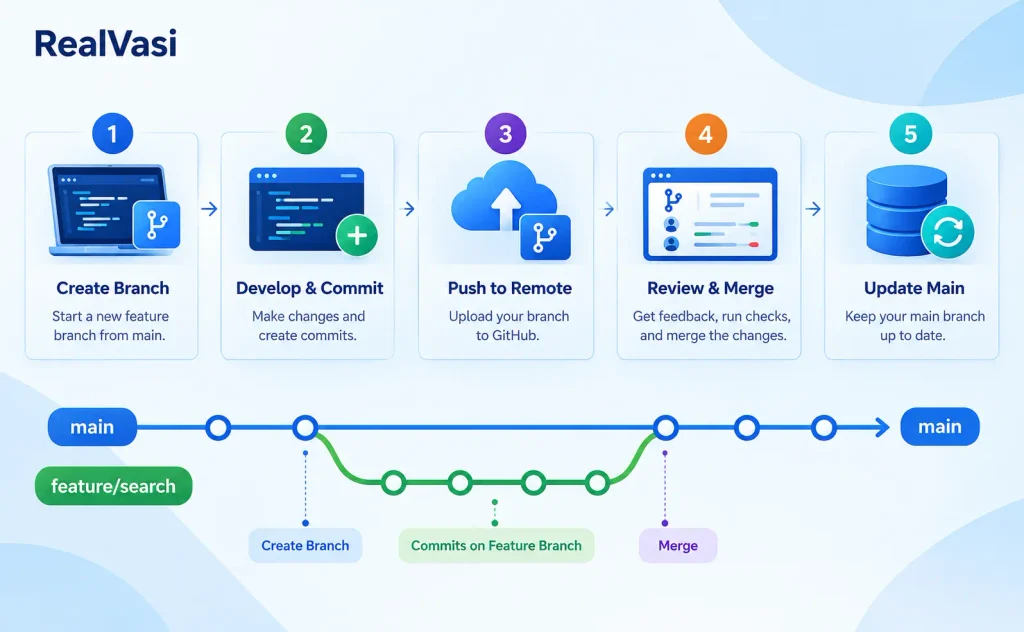
A practical collaborative workflow might look like this:
Requirement / Issue
↓
Create Feature Branch
↓
Implement Changes
↓
Create Focused Commits
↓
Push Branch
↓
Open Pull Request
↓
Review
↓
Automated Checks
↓
Address Feedback
↓
Merge
↓
Delete Completed Branch
This workflow separates development from important shared branches while creating opportunities for review, testing, and quality checks.
The detailed Pull Request and code-review process is covered separately.
Branch Best Practices
Some practical branch practices include:
Use Branches for Meaningful Work
Features, bug fixes, experiments, and other independent changes can be developed separately rather than being mixed directly into important shared Git branches.
Use Understandable Names
A branch name should communicate the purpose of the work.
For example:
feature/customer-search
bugfix/login
feature/payment
Keep Branches Reasonably Focused
A branch containing one logical feature or fix is generally easier to understand and review than a branch containing many unrelated changes.
Keep Important Branches Protected
Use appropriate review and automated-check requirements for branches that are important to the project.
Remove Completed Branches
Once work has been successfully merged and a branch is no longer required, removing it can keep the repository easier to navigate.
Avoid Unnecessary Branching Complexity
Choose a branching strategy that matches the project’s size, team structure, release process, and risk level.
A Real-World Example
Consider a team developing an e-commerce application.
The team needs to add a new customer-search capability.
Instead of modifying main directly, a developer creates:
feature/customer-search
The developer then follows this process:
Create Branch
↓
Implement Search
↓
Commit Changes
↓
Run Tests
↓
Push Branch
↓
Open Pull Request
Other developers review the changes.
Automated checks can also run:
Pull Request
↓
Lint
↓
Unit Tests
↓
Build
↓
Security Checks
After the required reviews and checks are successful, the feature can be merged into the appropriate target branch.
This approach creates a clear separation between development, review, and integration.
Key Takeaway
Branches provide independent lines of development within a Git repository.
They help developers:
- Isolate features and fixes
- Work in parallel
- Experiment safely
- Keep important branches more stable
- Organize collaborative development
- Support code review
- Integrate changes in a controlled manner
The most important concepts to remember are:
Branch
↓
Independent Development
↓
Commits
↓
Push
↓
Pull Request
↓
Review + Checks
↓
Merge
A good branching strategy should provide enough isolation and control without creating unnecessary complexity.
Once Git branches are understood, the next question is:
How does Git record the actual work performed on those branches?
That brings us to Git Commits.